Add members in Label Studio Enterprise
You can view, add, and manage organization members from the Organization page in Label Studio.
Navigate to the Organization page by clicking the menu in the upper left and selecting Organization.
Only users in the Owner or Administrator role can access this page.
Invite members
Once the initial organization account is created, you can begin inviting users.
From the Organization page, click Invite Members. From here you have two options:
Invite link
You can share this link with users, who can then complete the registration process.
However, they will be unable to access Label Studio until an Owner or Administrator manually assigns them a role. See User roles and permissions.
Click Reset to reset the link. When reset, anyone who has the old link will be unable to register a new user account.
Invite via email
Enter a list of email addresses separated by commas and then select a user role for the new accounts.
Users will receive an email with a link to create their Label Studio account, and will be able to access Label Studio as soon as their registration is complete.
Require invites for new users (on-prem deployments)
While you can invite users to join your organization with the invite link, this does not prevent users from registering a new account through the signup page.
You can remove the option to create accounts through the /user/signup page by setting the following environment variable:
LABEL_STUDIO_DISABLE_SIGNUP_WITHOUT_LINK=trueUsers will only be able to sign up through an invitation link or email.
Activate new users
Users who sign up through the link will not be able to access Label Studio until they are assigned a user role.
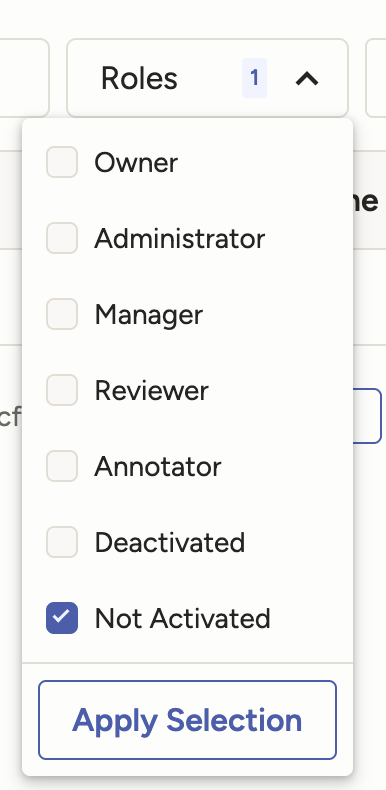
To filter for users who are pending, select Pending from the roles filter at the top of the Organization > Members page:
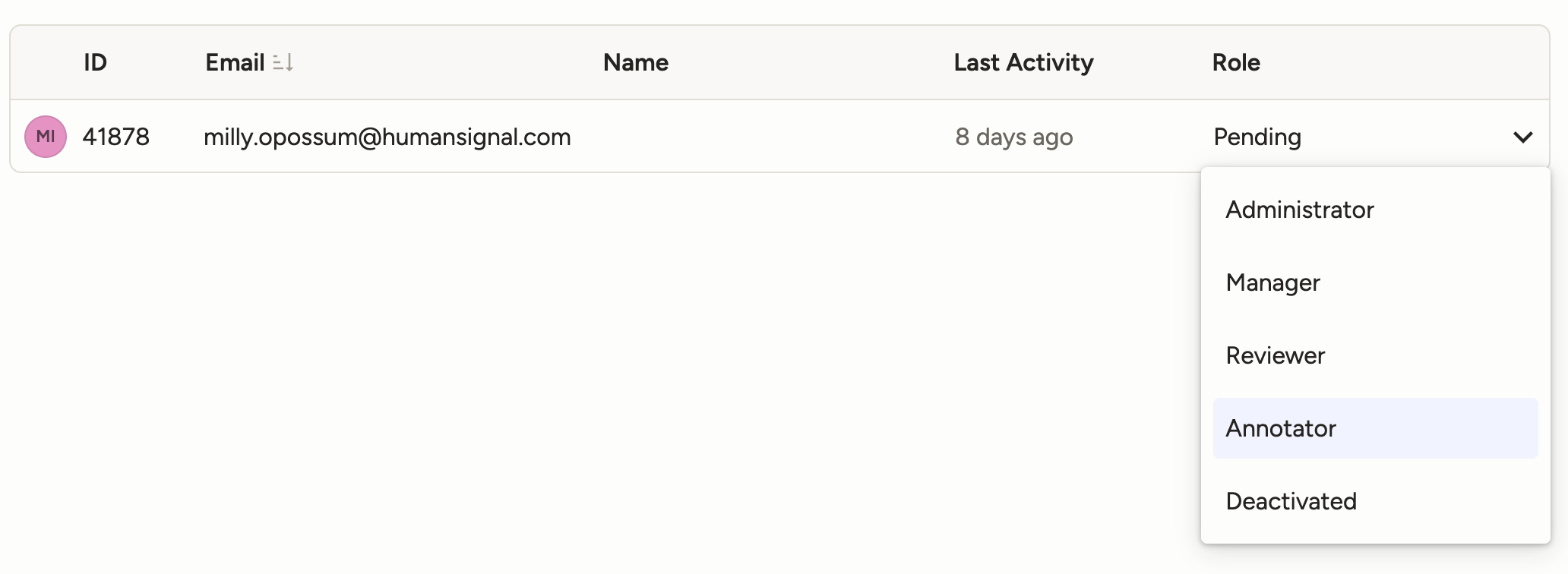
Then use the drop-down menu to assign a role: